 Wander
Versions
GitHub
Contents
Русский
Wander
Versions
GitHub
Contents
Русский
Views and sorting
Switch views in the “View” menu or with the keyboard:
| View | Keys | What it shows |
|---|---|---|
| Details | Ctrl+Shift+6 |
Name, date, size and type in columns |
| Tiles | Ctrl+Shift+7 |
A thumbnail with details next to it |
| Icons | Ctrl+Shift+2 |
A grid of thumbnails |
| Gallery | Ctrl+Shift+1 |
Large photos for culling, see “Gallery” |
“View” and “Sort” are also in the right-click menu on empty space in a folder.
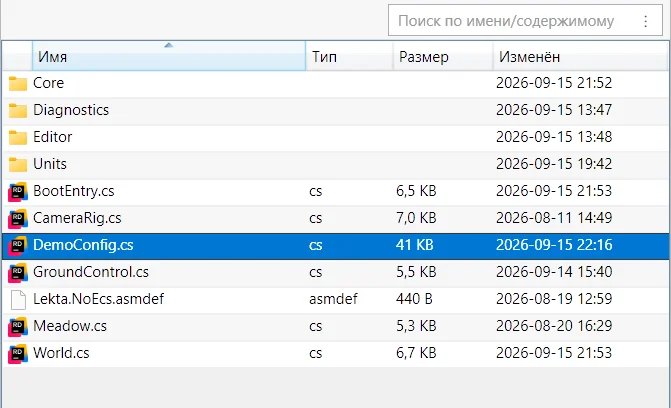
Each folder remembers its view. Choose Tiles for a folder, and it keeps opening in Tiles. Other folders use the default view (Icons out of the box), and folders of photos use Gallery. The first line of the “View” menu tells you why the folder looks the way it does: “pinned”, “auto: photos” or “default”.
- “Automatic” unpins the view from the open folder.
- “Set as default view” applies the current view to all folders without a pinned view; you can also choose the default view in “Settings” → “View”.
Sorting: by name, date, size, type or rating, plus “Ascending” and “Folders first”. In Details, just click a column header; click it again to reverse the order. The sort order is pinned to a folder just like the view, and “Default” unpins it; out of the box, files are sorted by name, with folders first. A pinned view and sort order move with the folder when it's renamed or moved.
Sizes
Ctrl+mouse wheel makes items larger or smaller; each view has its own size, and it's saved.
Ctrl+wheel click restores the standard size.
Exact values are set in “Settings” → “View” → “Sizes”:
- Details: row height and icon size;
- Tiles: width, icon size and font size;
- Icons and Gallery: cell width, image size, spacing and font.